
Training ›
Club email
Club email sends a message to the people on your Member list, with your club name at the top. Replies come back to your own email address. Club email is part of the paid plans and the free trial.
Write and send an email
- On your club’s home page, press Email members. Or, from a meeting’s Print, Word and email tab, press Email to members.
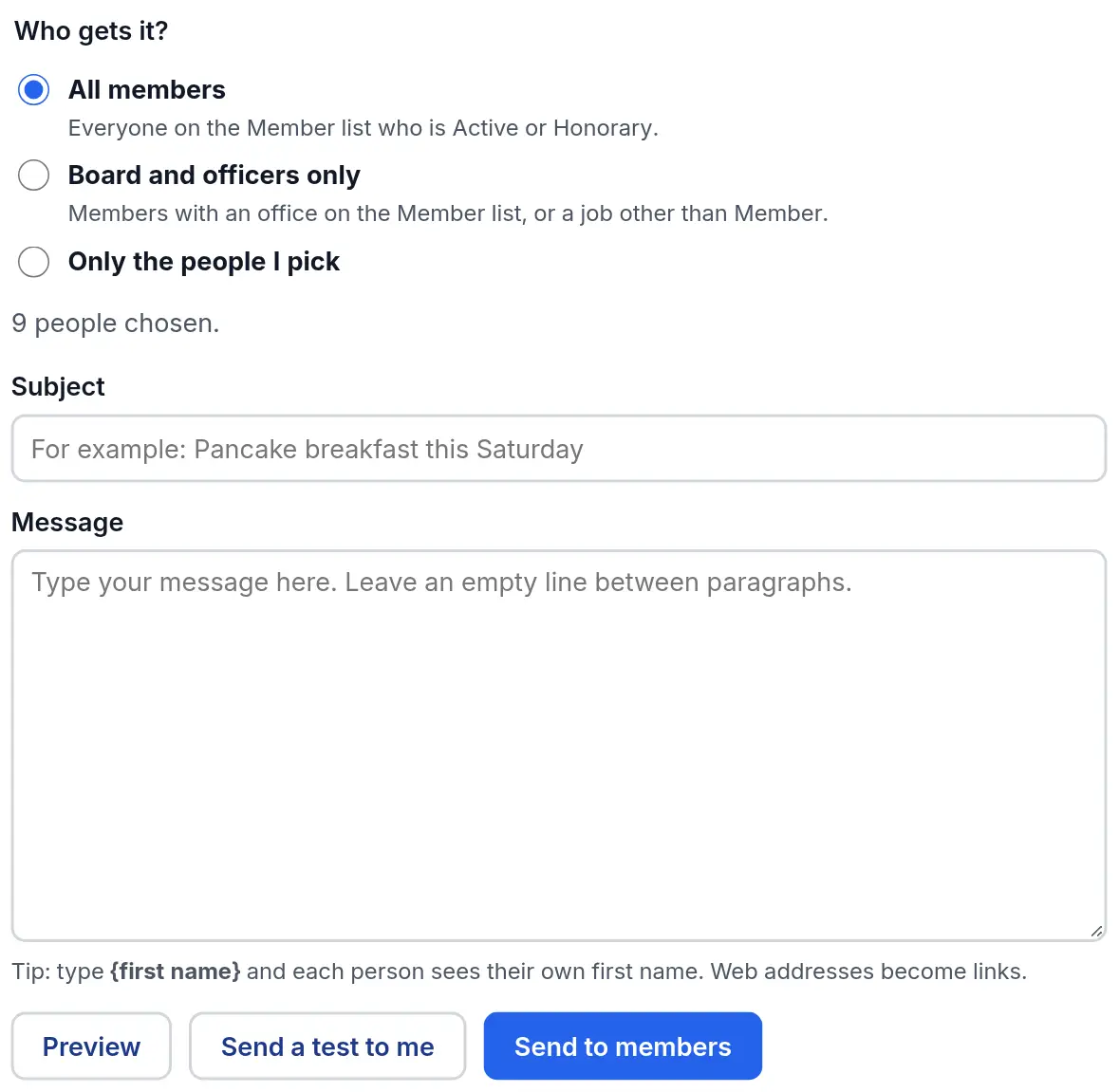
- Choose Who gets it?: All members (everyone on the Member list who is Active or Honorary), Board and officers only, or Only the people I pick.
- Type a Subject and your Message. Type {first name} and each person sees their own first name.
- Press Preview to see it, and Send a test to me to get a copy in your own inbox first.
- Press Send to members. We tell you who got it and who did not.
Things to set up once
- Type your Club mailing address at the bottom of the email page. It is shown at the bottom of every club email, as the law asks for group emails. A P.O. Box is fine.
- Ask your Admin to add the club logo in Club settings. It goes at the top of every club email.
- Every email has a link at the bottom so a member can stop getting club emails. People who chose that are listed at the bottom of the page. Only they can turn emails back on.
Watch out for: Members with no email address on the Member list are skipped. The page tells you how many before you send.