Training ›
Your first meeting
Meetings does the paperwork for you. You make an agenda before the meeting, type short notes during it, and the minutes are written for you at the end.
Plan the meeting
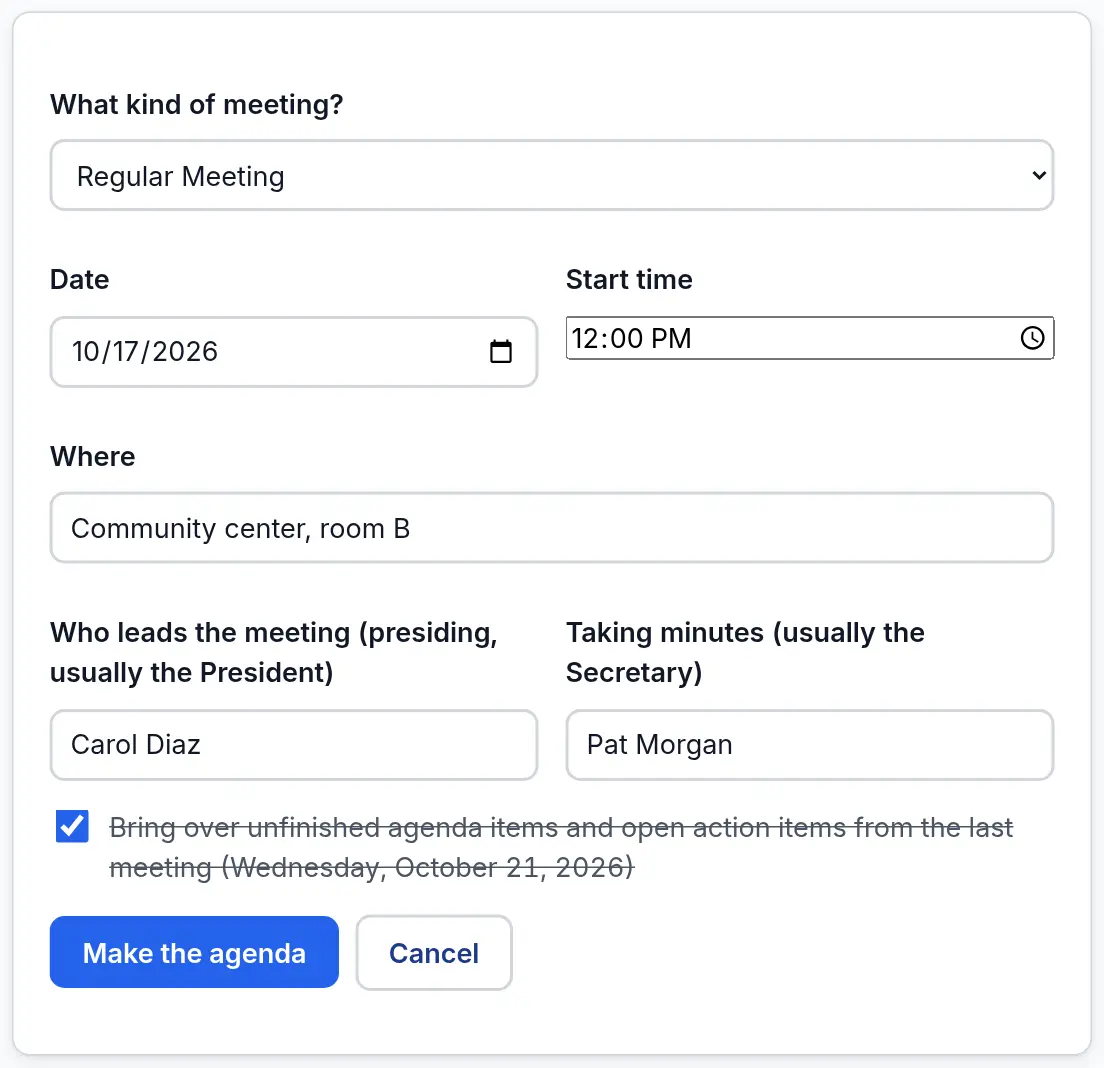
- Press Meetings at the top, then + Plan a meeting.
- Pick the kind of meeting (for example Regular Meeting or Board of Directors Meeting) and the date. Add the start time and where it is.
- Type who leads the meeting (usually the President) and who takes the minutes (usually you). We remember these for next time.
- Press Make the agenda. A starting agenda for your kind of club is filled in for you.
Tip: From the second meeting on, leave Bring over unfinished agenda items ticked. Anything not finished last time, and open action items, come along.
Change the agenda
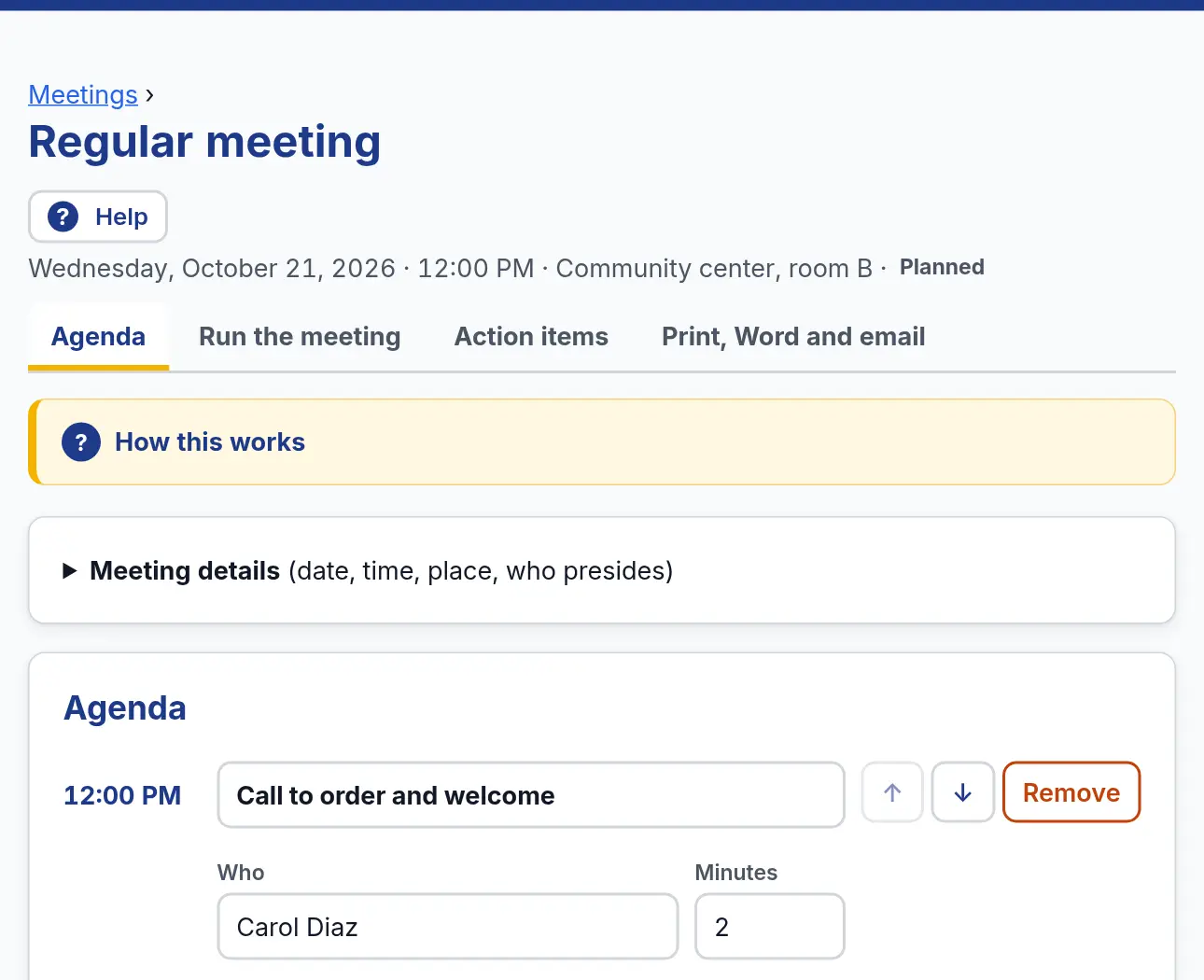
- On the Agenda tab, type in any item to change it. Changes save by themselves. There is no Save button.
- Use the arrows to move items up or down. The times add up for you.
- Add an item with the box at the bottom, or tap one of the quick-add buttons.
- Like this agenda? Press ★ Save as our usual agenda. New meetings of this kind will start with it.
Hand out the agenda
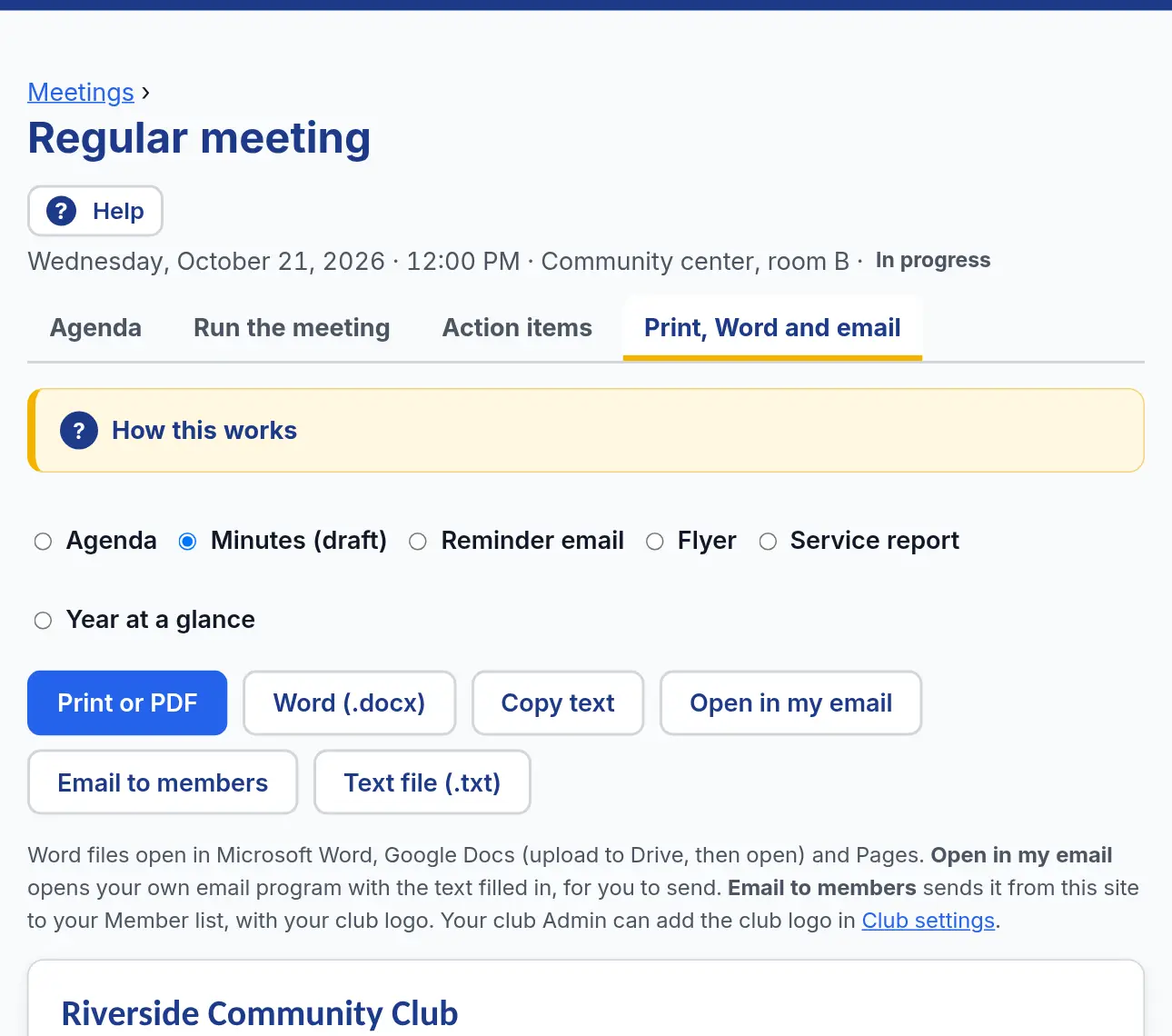
- Open the Print, Word and email tab. Agenda is picked at the top.
- Print or PDF prints it, or saves it as a PDF file. Word (.docx) makes a file you can change in Word or Google Docs.
- Email to members sends it from this site to your Member list. You choose who gets it on the next page.
- Open in my email opens your own email program with the words filled in, if you would rather send it yourself.
During the meeting
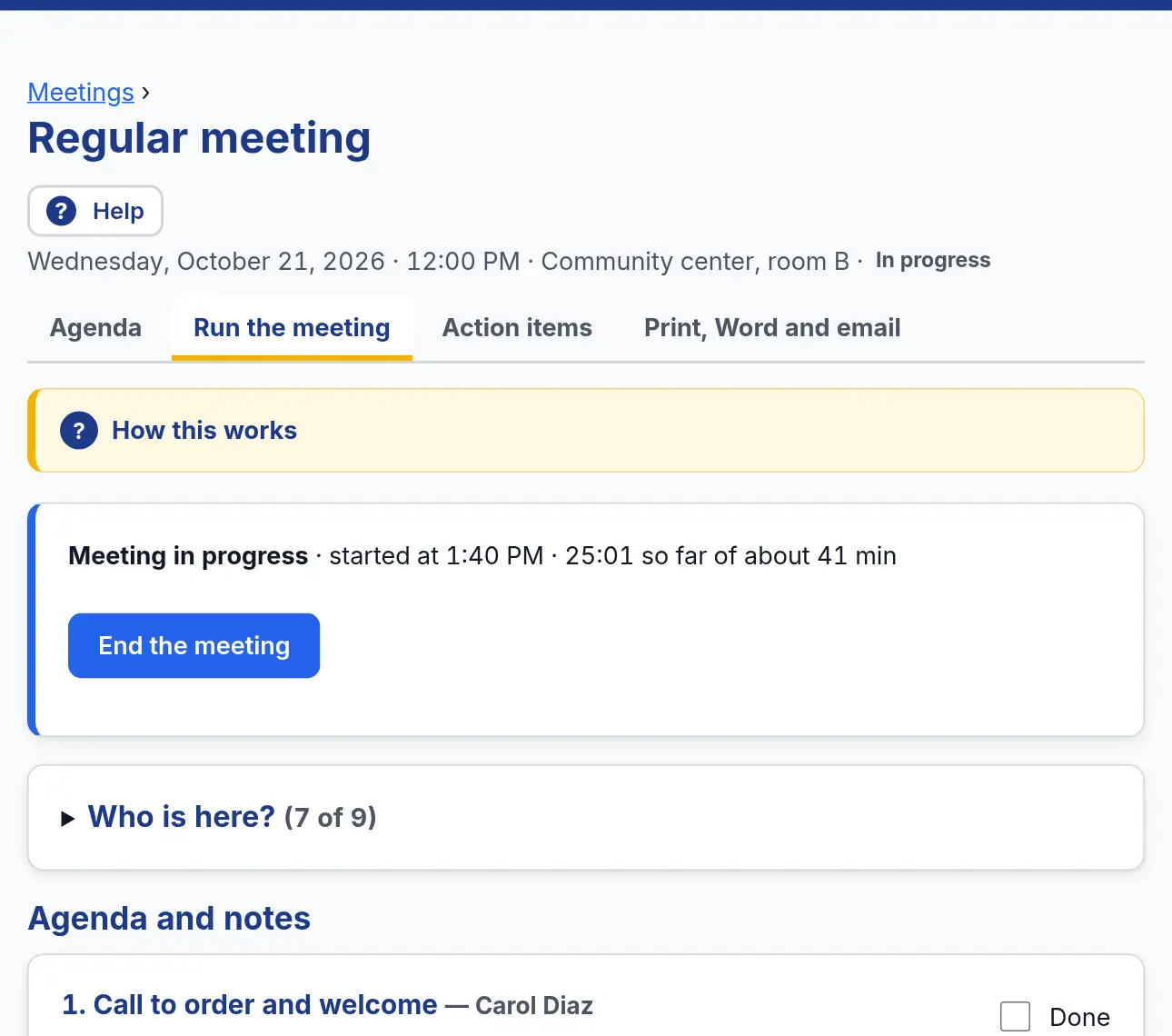
- Open Run the meeting and press Start the meeting when the meeting is called to order. The time goes in the minutes.
- Under Who is here? tick each person, or press Everyone is here.
- Type a short note under each item. Notes save by themselves. Tick Done when an item is finished.
- When a motion is made, press + Record a motion: what it says, who moved and seconded it, and whether it carried. For a job someone agrees to do, press + Add an action item: what, who, and by when.
After the meeting: the minutes
- Press End the meeting at adjournment. The minutes are written for you from the attendance, notes, motions and action items.
- Open Print, Word and email and pick Minutes. Read them through. You can still fix a note on the Run the meeting page.
- Press Email to members. For a board meeting we pick Board and officers only; for other meetings, All members. You can change it before you send.
- Action items are listed under Meetings → Action items. Tick Done as each one is finished.
Watch out for: Until you press End the meeting, the minutes say “(draft)”. Press it at the end of every meeting.