
Training ›
Getting started
This lesson takes you from no account at all to a club with its members and officers. You only do most of it once.
Make your account and your club
- Go to myclubsmanager.com and press Sign in. Then choose Create an account.
- Type your name, your email address and a password of at least 8 characters. Press Create my account. If we ask you to, open the email we send and click the link in it.
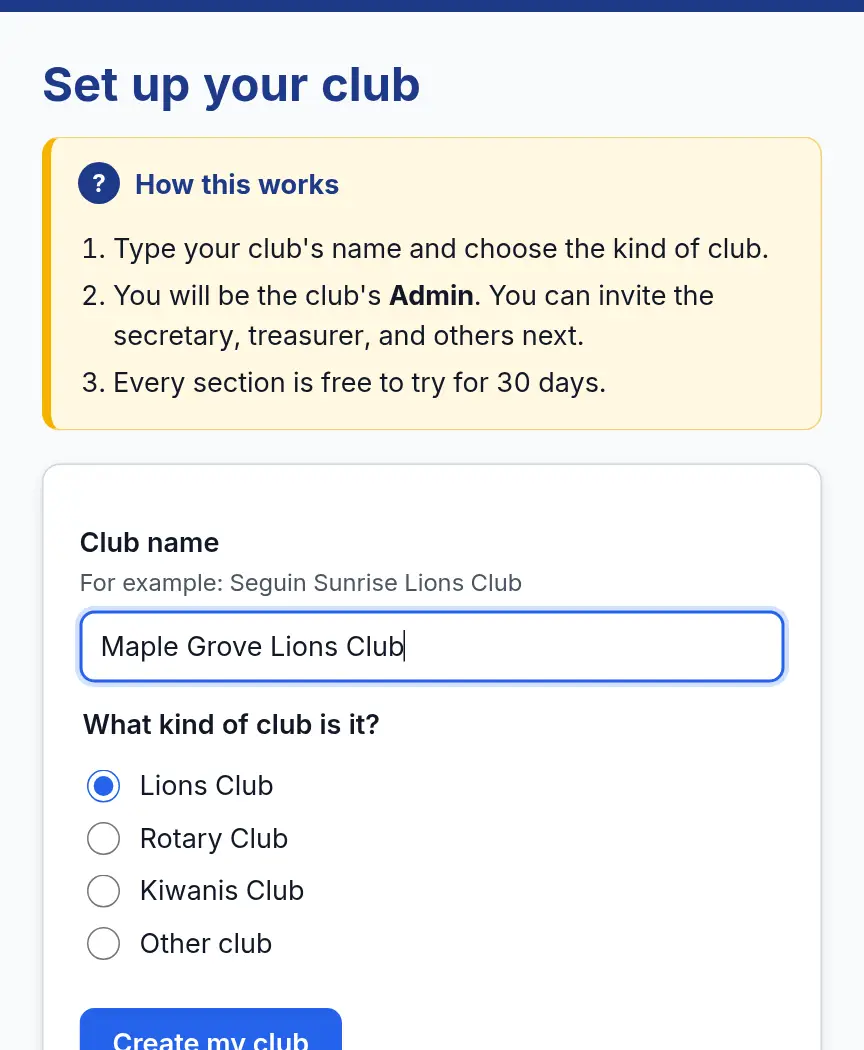
- On Set up your club, type your club’s name and choose the kind of club: Lions Club, Rotary Club, Kiwanis Club or Other club. Press Create my club.
- That’s it. You are the club’s Admin, which means you can do everything. Every section is free to try for 30 days.
Find your way around
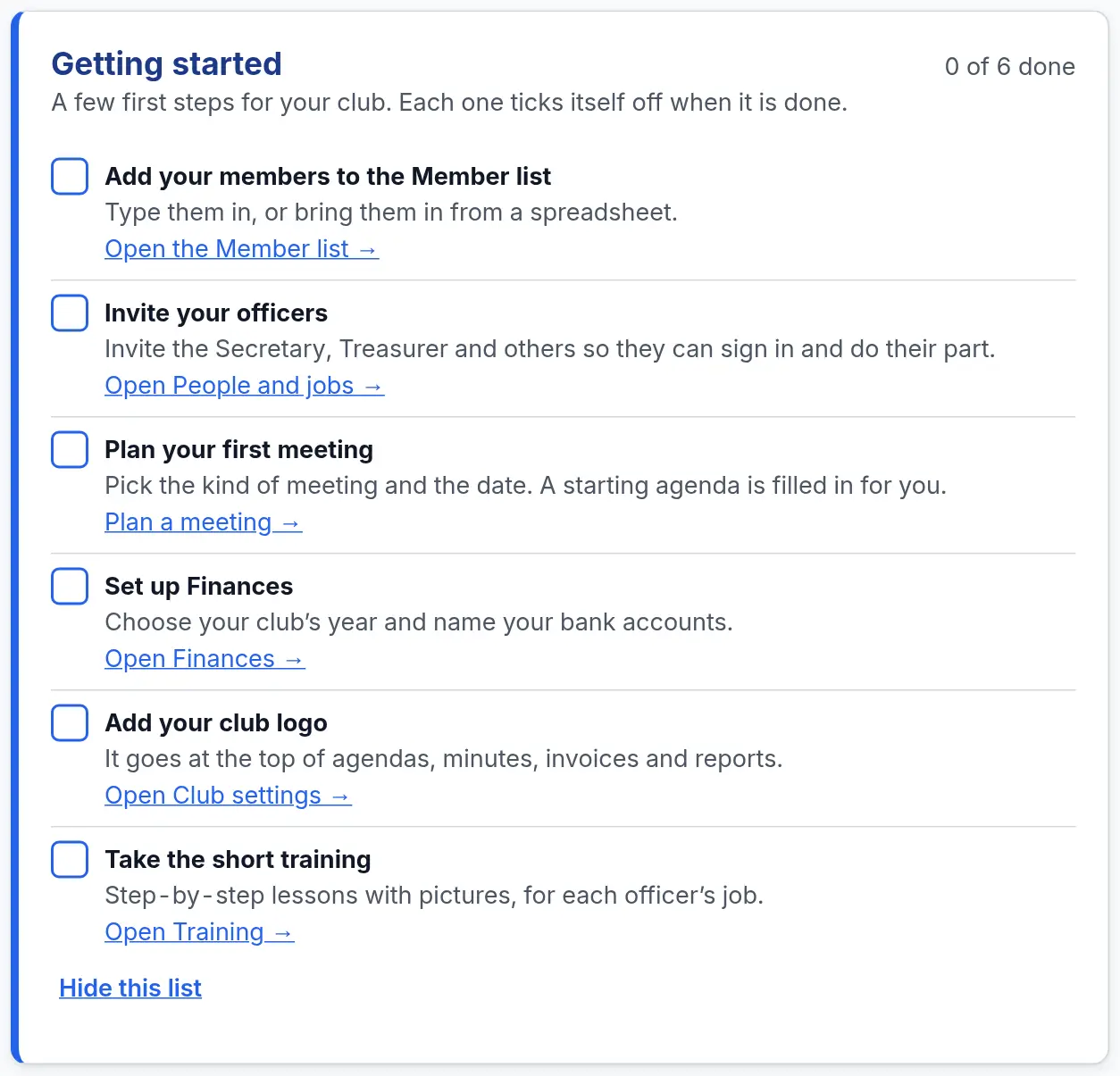
- After you create the club you land on your club’s home page. The Getting started list shows your first steps. Each one ticks itself off when it is done.
- Across the top are the main parts of the site: Home, Meetings, Fundraising, Finances and Training.
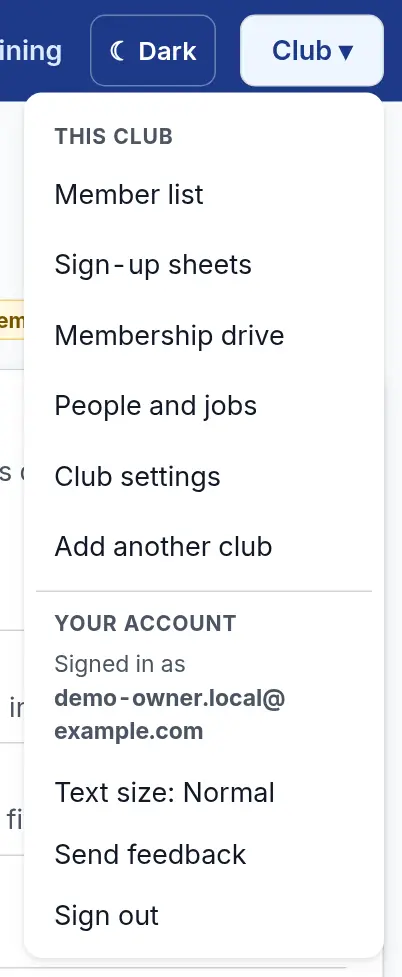
- The Club ▾ button opens the rest of your club: Member list, Sign-up sheets, Membership drive, People and jobs and Club settings. Under Your account in the same menu are text size, Send feedback and Sign out.
- Lost? Every page has a yellow How this works box and a ? Help button.
Add your members
- Open Club ▾ and choose Member list.
- Press Add a member. Only the first name is needed. Phone, email, address and the office they hold are all optional. Press Save member.
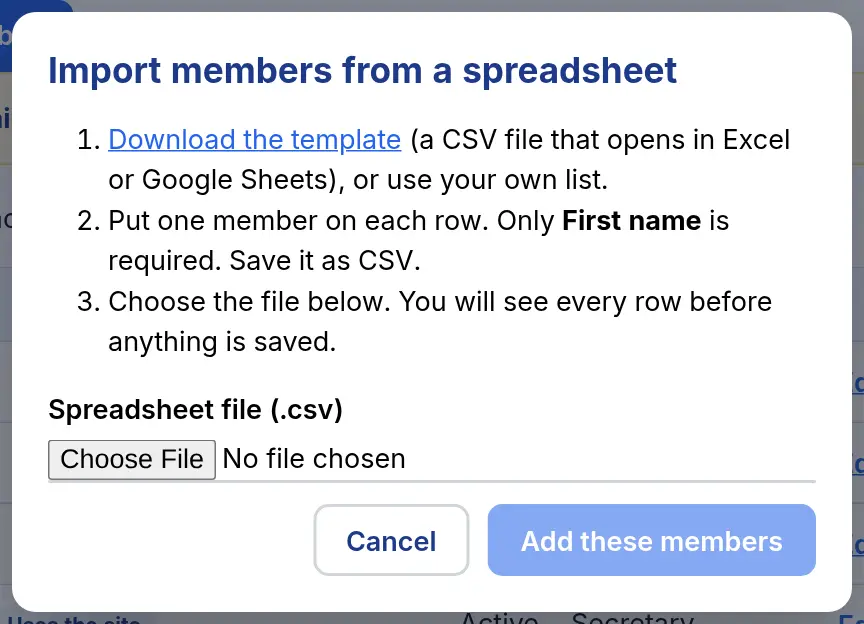
- Have a list already? Press Import from a spreadsheet. Download the template, put one member on each row, and save it as a CSV file. Choose the file. You see every row before anything is saved. Then press Add.
- To fix a name, press Edit. Remove hides a member but keeps their history. Show removed members brings them back.
Tip: Add an email address for each member if you can. Club emails and reminders use the email on the Member list.
Invite your officers
- Open Club ▾ and choose People and jobs. Only an Admin can do this.
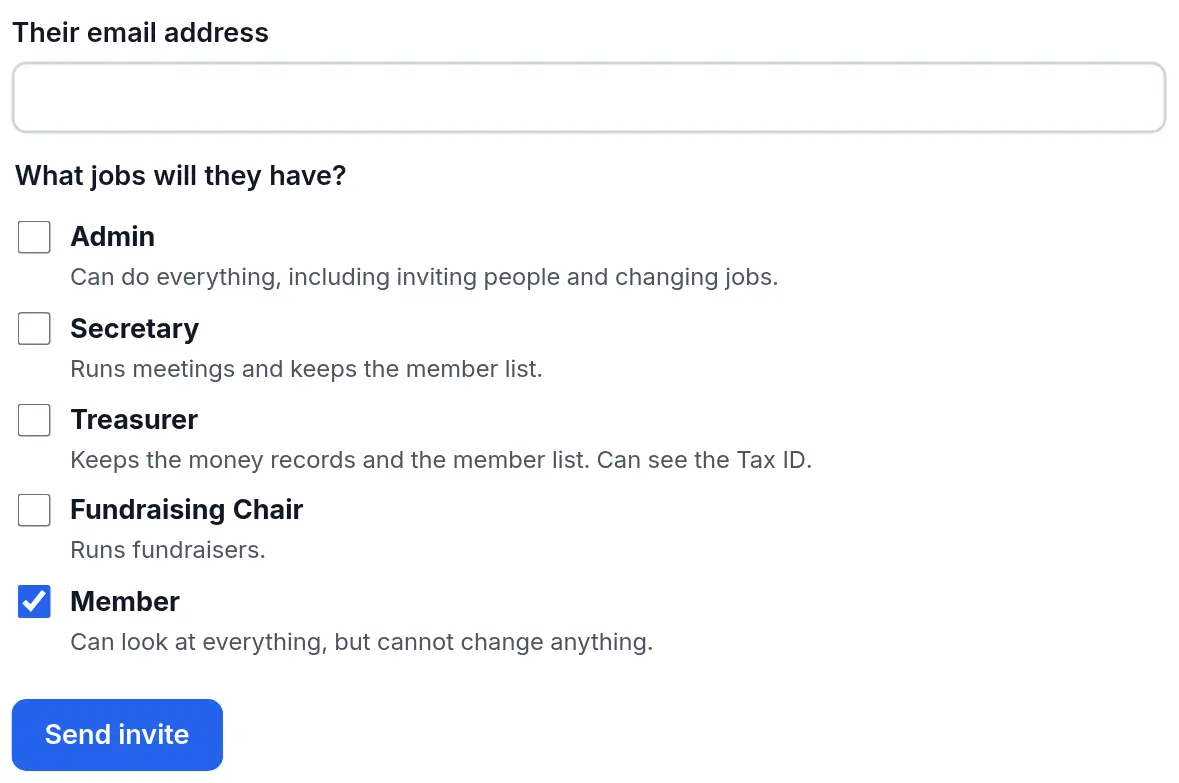
- Type the officer’s email address and tick their jobs: Admin, Secretary, Treasurer, Fundraising Chair or Member. A person can have more than one job.
- Press Send invite. We email them a link. You can also copy the link and send it yourself.
- They open the link and sign in, or create an account, with that same email address. Then they are in your club.
Watch out for: The Member list is everyone in your club, even people who never use the site. People and jobs is only the people who sign in. Add every member to the Member list; invite only the people who will sign in.