
Training ›
Dues and treasurer basics
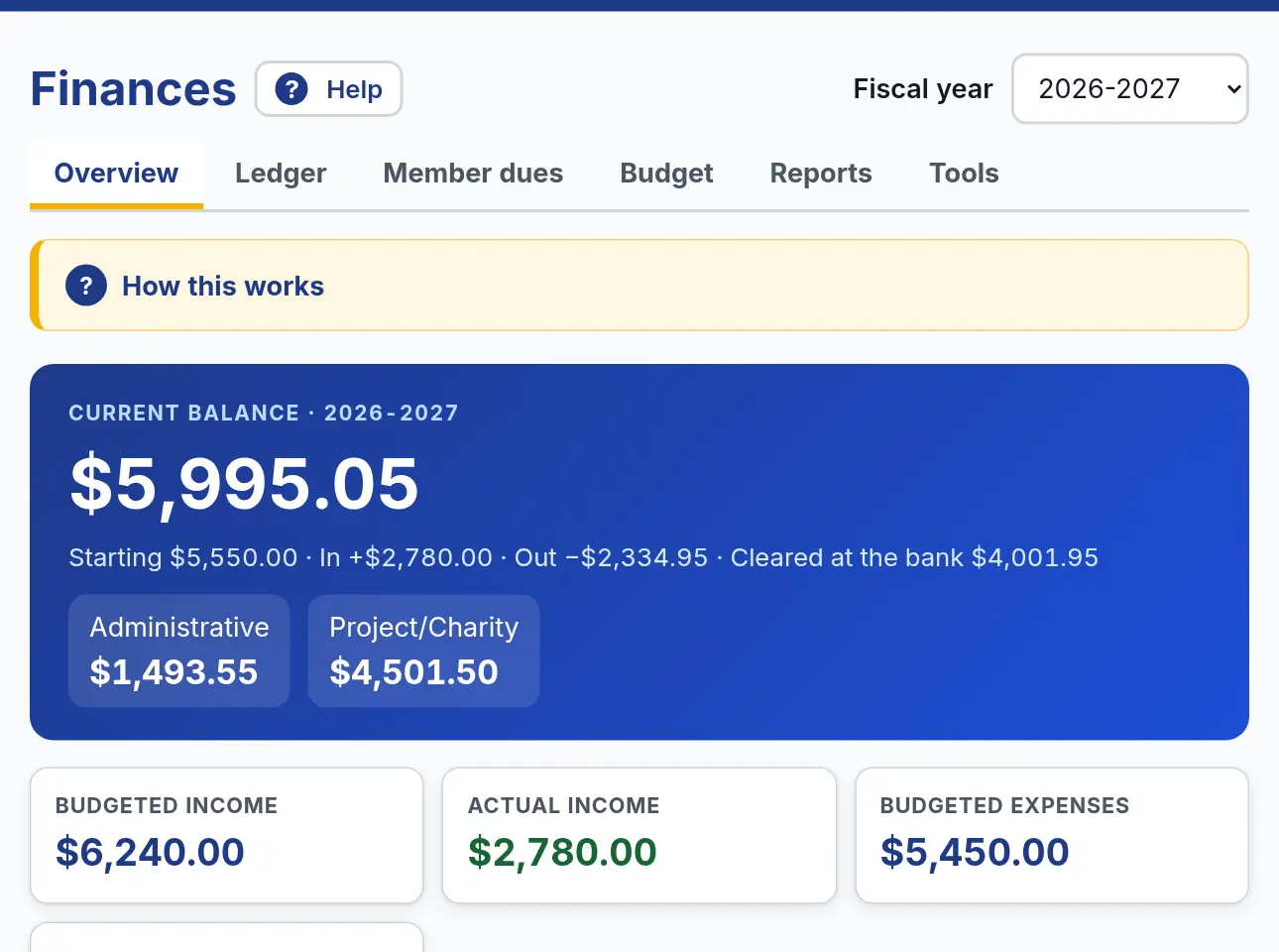
Finances is the club’s checkbook, dues list and reports in one place. Only the Treasurer and Admins can change it.
Set up Finances (once)
- Press Finances at the top. The first time, it asks a few questions.
- Name your club’s year (for example 2026-2027) and its first and last day. Many clubs run July 1 to June 30.
- Name your accounts. Many clubs keep money for running the club separate from money raised for the public, so there are two to start.
- Next, type what each account had in the bank on the first day of the year, and your budget lines. You can change all of this later on the Tools tab.
Record money in and out
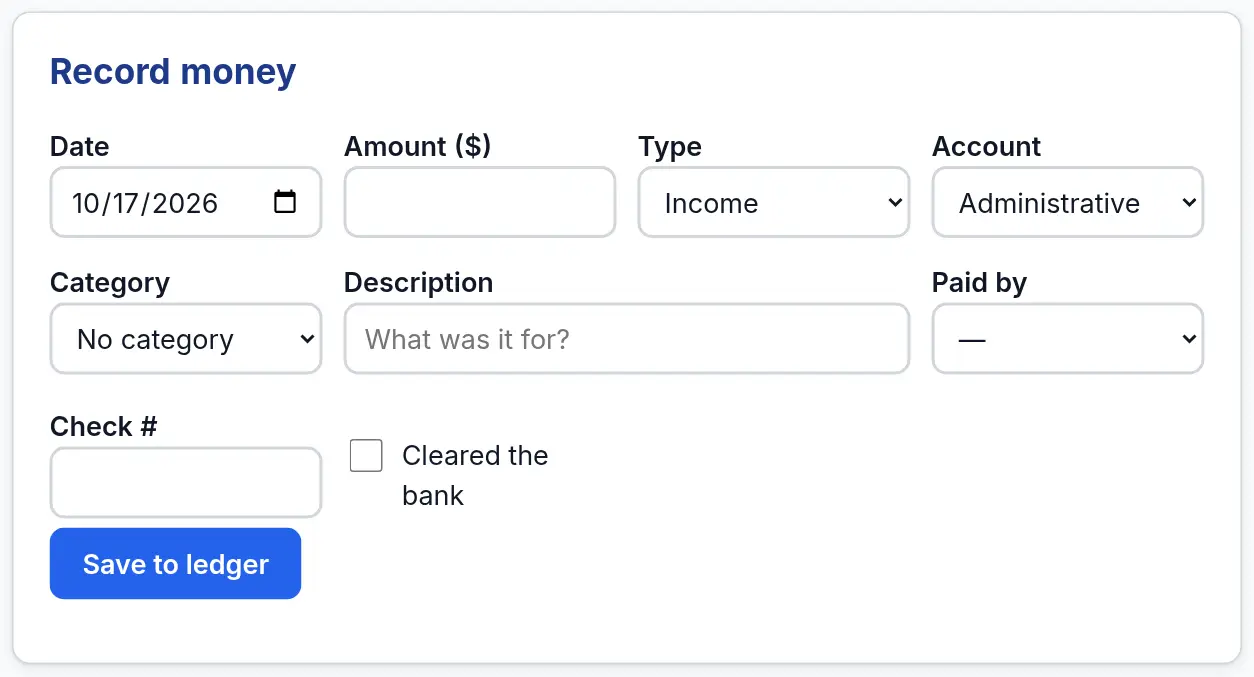
- Open the Ledger tab. The ledger is the club’s checkbook.
- Under Record money, type the date and amount, and pick the type: Income, Expense or Move between accounts.
- Pick the account and a budget category, so your budget and reports stay right.
- When the bank statement comes, open each entry the bank shows and tick Cleared the bank. Download spreadsheet gives you the whole ledger for Excel.
Collect member dues
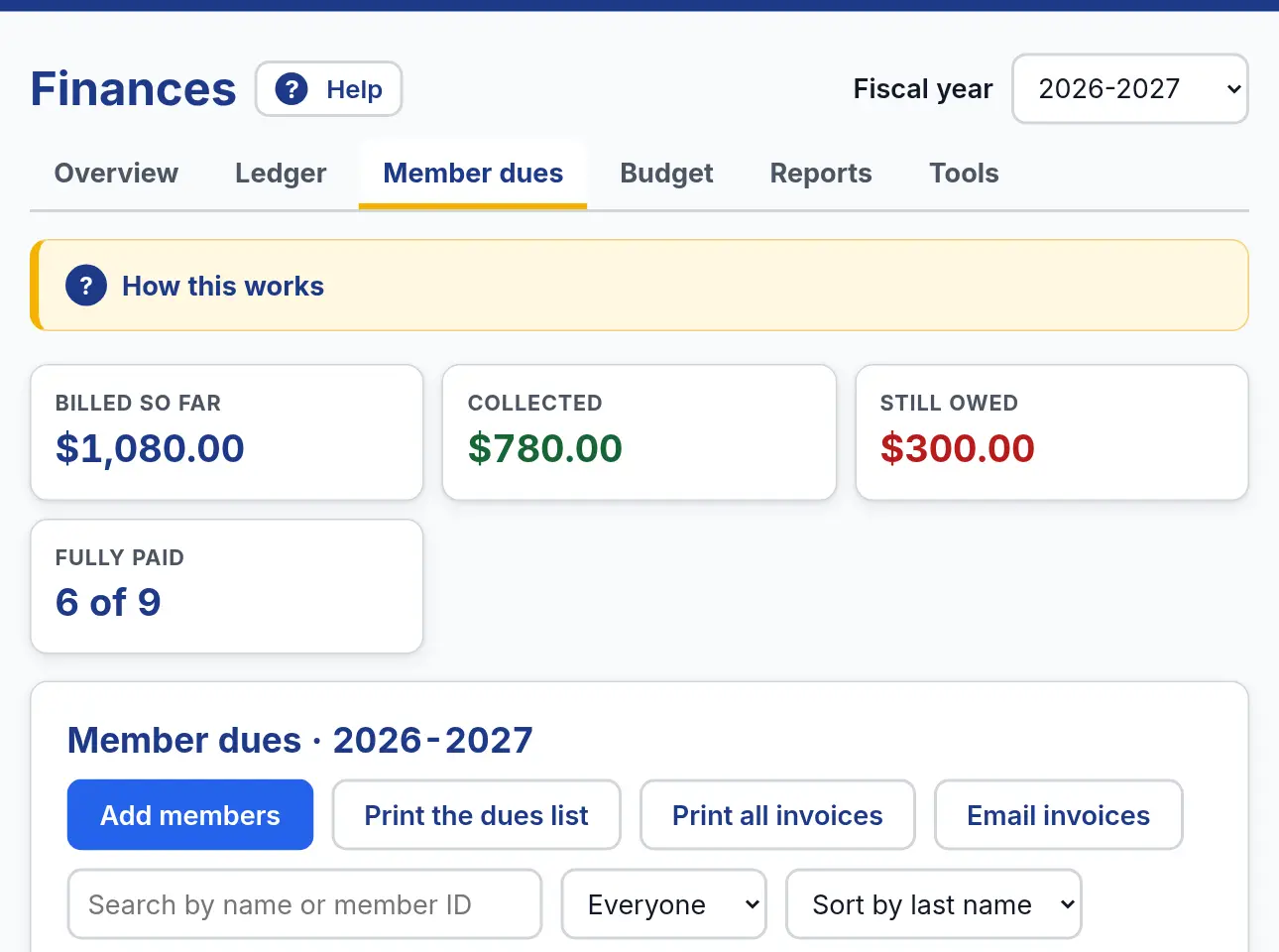
- Open Member dues and press Add members. This brings people from the Member list onto this year’s dues. Set the monthly amount and the month billing starts.
- When someone pays, press Pay on their row. The payment goes on the Ledger for you.
- Press Invoice to print one member’s bill, or Print all invoices or Email invoices for everyone.
- Extra charges, like a shirt or a meal, go under Details. Each payment there can print a receipt.
Tip: Do not also record dues with Record money. Pay already puts it on the Ledger.
Reports for the board
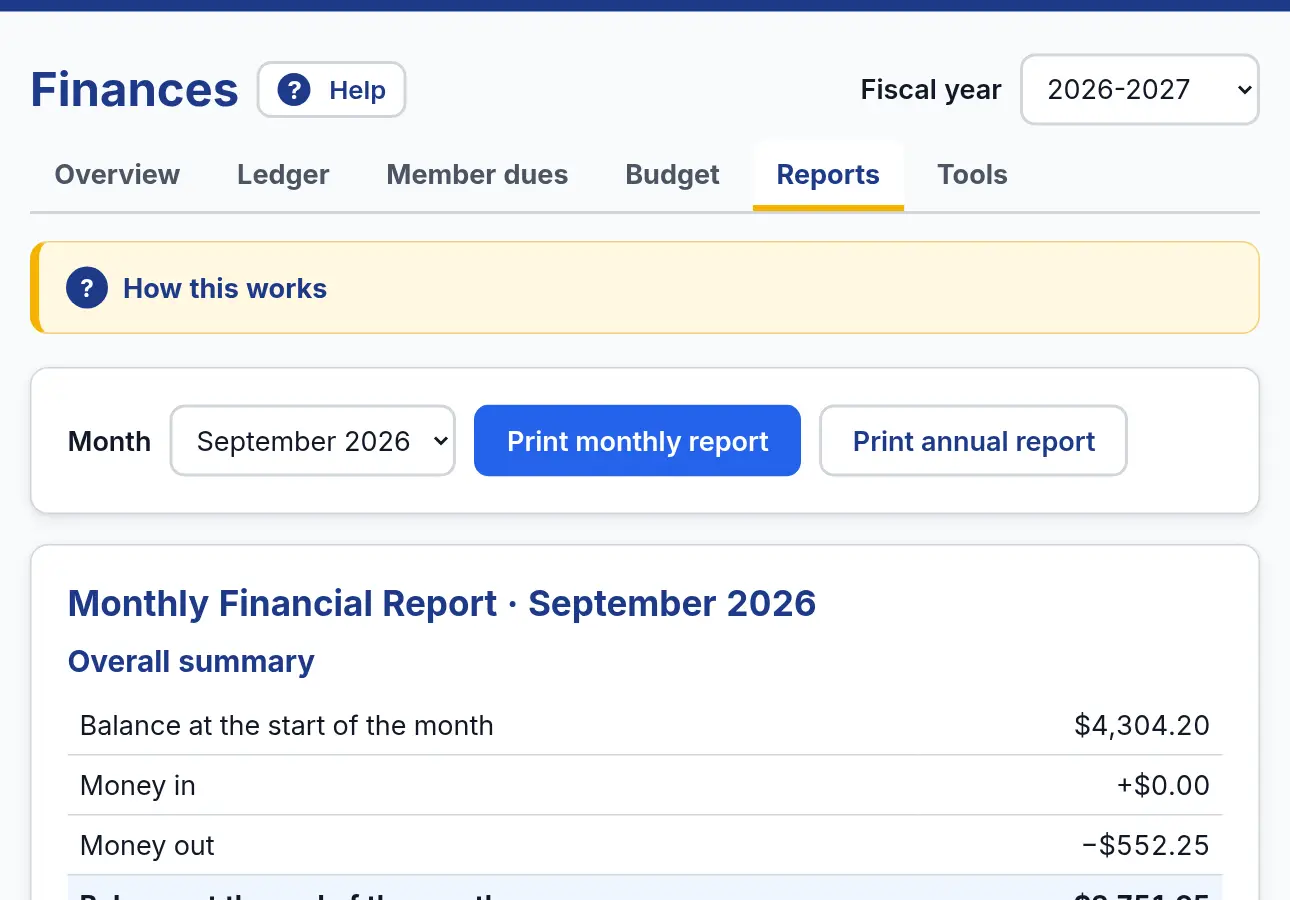
- Open Reports. The Monthly report shows totals by category for one month, for your board meeting. It does not list member names.
- The Annual report compares the year’s budget with what really happened.
- Press Print to print it or save it as a PDF.
- On Tools, Who can see Finances lets you choose whether all members, only officers, or only the Treasurer and Admins can look.
Watch out for: Press Pay for dues instead of Record money, or the payment is counted twice.