
Training ›
Running a fundraiser
Each fundraiser gets its own page with the right lists for that kind, a budget, and a week-by-week checklist.
Start a fundraiser
- Press Fundraising at the top, then + New fundraiser.
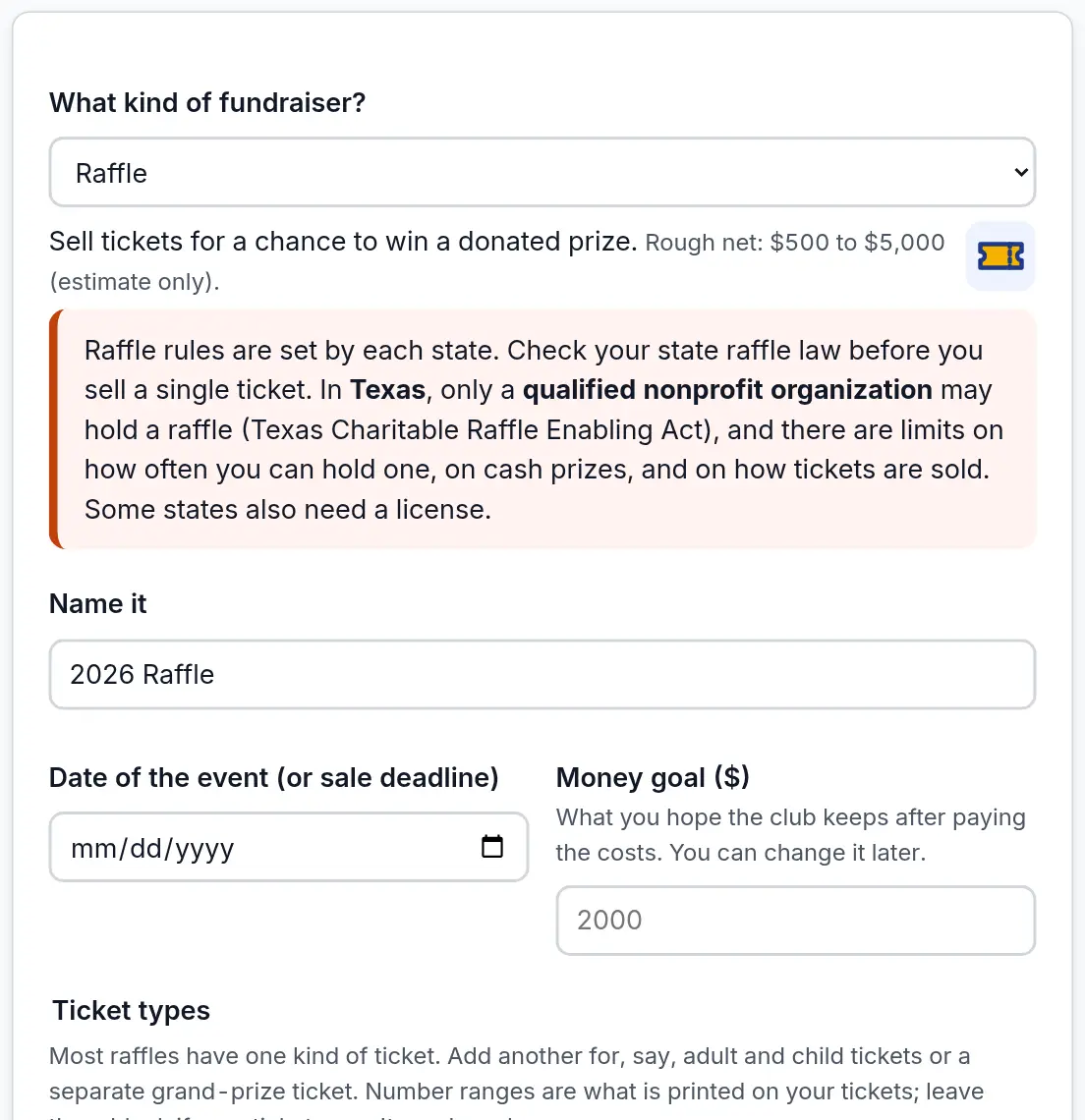
- Pick the kind. A short description shows below, with a rough idea of what clubs usually make.
- Give it a name and a date, and a money goal: what you hope the club keeps after paying the costs. For a raffle, add the ticket price.
- Press Create fundraiser. Just want to look around? On the Fundraising page, Try sample fundraisers adds made-up ones you can delete later.
Find your way around a fundraiser
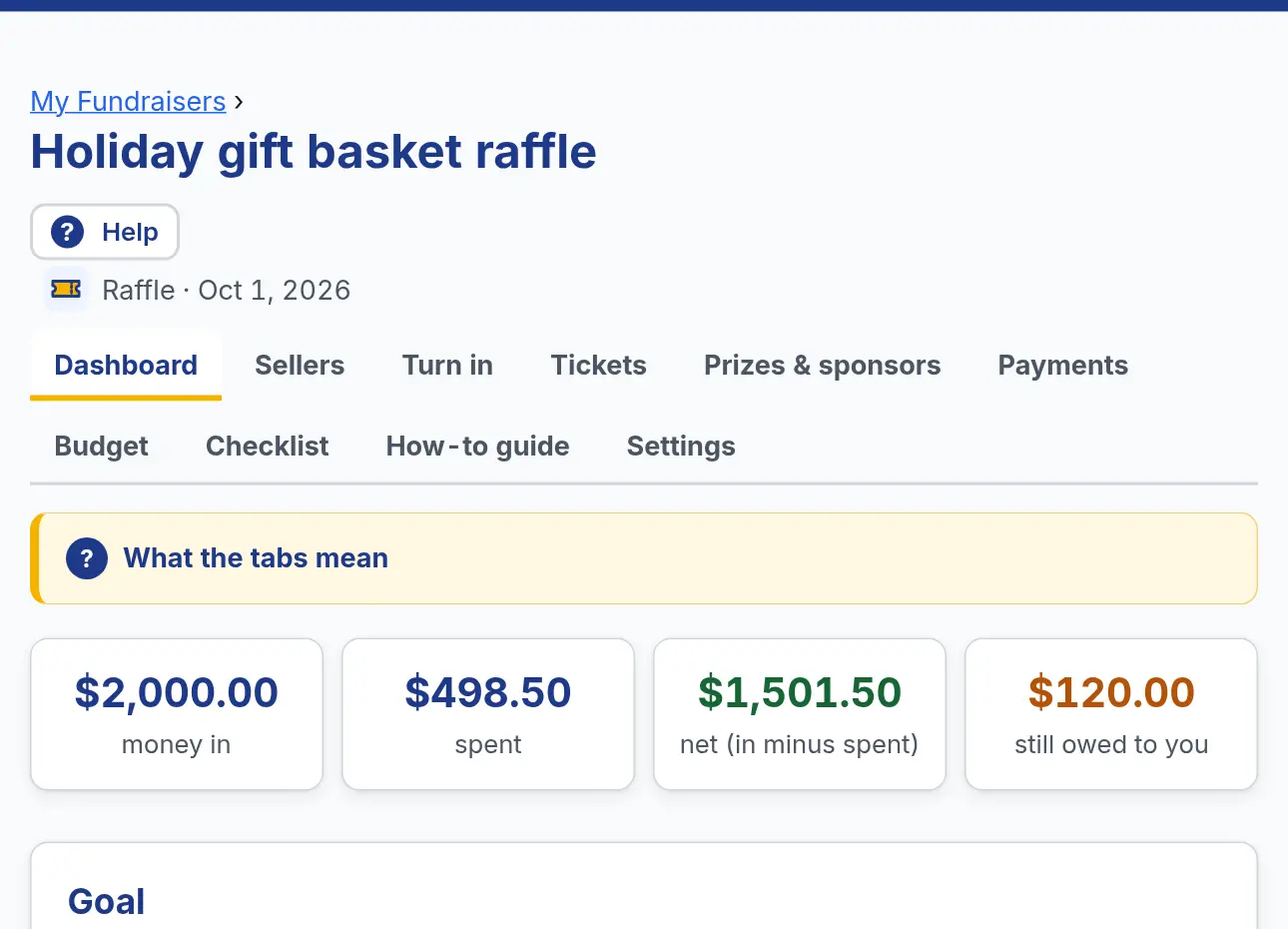
- The Dashboard shows money in, money spent, what the club keeps, and the next steps.
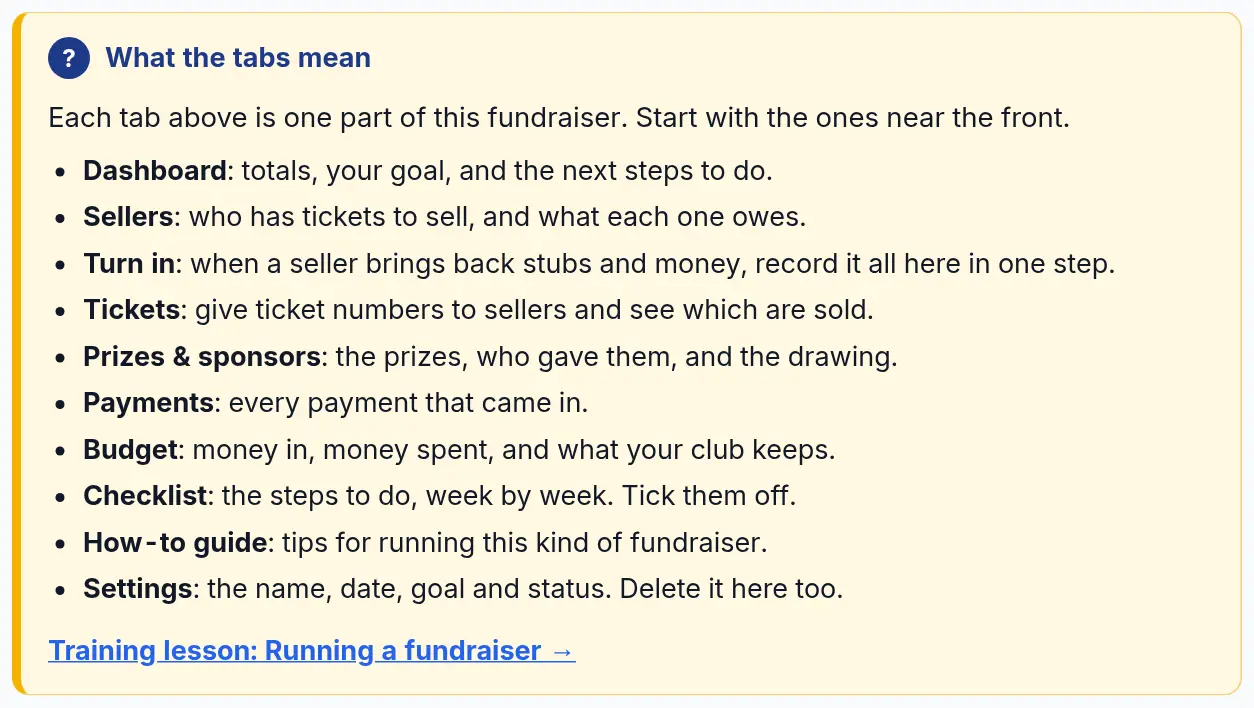
- The other tabs depend on the kind. What the tabs mean, at the top of the Dashboard, explains each one.
- The Checklist tab lists what to do from 8 weeks out to the big day. Tick each step off.
- The Budget tab adds up money in and money spent. The How-to guide tab has tips for that kind of fundraiser.
Each kind, briefly
- Raffle: add sellers and give them ticket numbers. When they bring back stubs and money, use Turn in to record it all in one step. List the prizes and draw the winners.
- Sales (BBQ plate sale; holiday wreath and poinsettia sale; brooms, light bulbs or candy): take orders, mark them paid and delivered, and list your volunteers.
- Events (pancake breakfast, golf tournament, car show, 5K fun run, trivia night): keep registrations or tickets, sponsors and volunteers.
- Silent auction: list the items and record bids. The top bid on each item shows.
- Sponsorships: list what a sponsor can adopt, add sponsors with their level, and see who still needs a thank-you. Grant tracker: each grant with its status, and every deadline and report date, soonest first.
Watch out for: Money recorded in a fundraiser stays with that fundraiser. The Treasurer still records the club’s deposits in Finances.